
Set Your Default Facebook Landing Page

February 17, 2010 · Print This Article

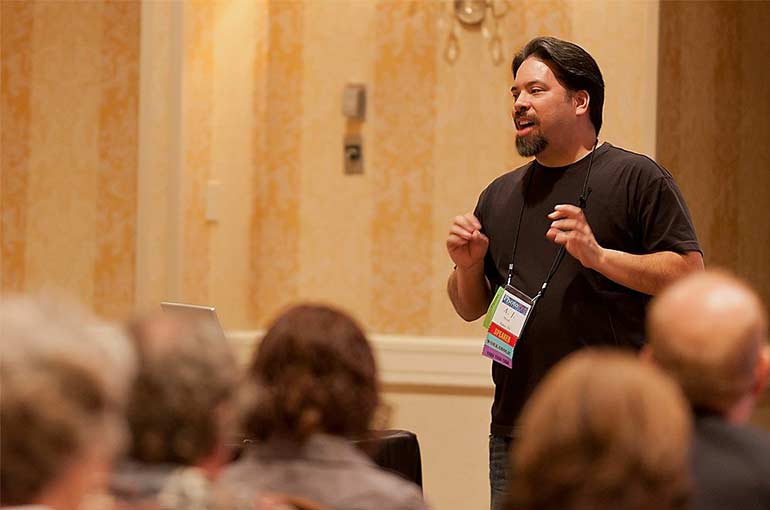
On Monday, February 15th, Sandy Norton delivered a presentation on using Facebook as a business application for DFWSM. I was unable to attend, but understand there was some valuable information. By popular request, here is a quick video tutorial I created for #DFWSM members on how to set the default landing page for your Facebook business pages.

Aperture 3 vs Lightroom 3(beta)

February 9, 2010 · Print This Article

You couldn’t have gotten too far into your day without hearing the announcement that Apple released Aperture 3 for photographers. I received a number of messages today, some asking if I heard the news, and many others asking “Should I get Aperture 3 now, or Lightroom 3 later?” My immediate reply to the Aperture vs Lightroom debate has been, “I don’t use Aperture, therefore no comment.” However, since people seem eager for my opinion (you know who you are) let me give you my initial thoughts on how the latest Apple release stands up:

Aperture 3 touts over 200 new features. I can say that photographers who already enjoy this product will find it a worthwhile upgrade. Looking through the list I saw many UI enhancements, but I also noticed many features already available in Lightroom 2, or set for release in Lightroom 3. But what about those new features?

== Aperture 3 New Features ==

Aperture Brushes vs Lightroom Adjustment Brush
Aperture 3 finally adds some targeted adjustments via the Brushes tool. Lightroom users have been enjoying this capability for over a year, and at first glance the differences appear only in the execution of how to apply adjustments. Both products offer an overlay mode to see where adjustments are painted. Both products offer a form of edge detection/masking to allow for clean lines when you paint. Aperture’s Brushes have a setting to either “brush in” or “brush away” an adjustment. Based on my initial assessment there may be additional tweaks you can apply using Aperture Brushes vs Lightroom’s Adjustment Brush.

Sharpening
The Aperture demo includes a quick video on Edge Sharpening using the Brushes tool. As a comment, sharpening in Lightroom via the Details panel or the Adjustment Brush appears to allow more control. Both programs allow you to brush in sharpness, but Lightroom’s Detail panel can quickly setup an edge mask without brushing.

Presets
Both products come ready with adjustment presets. Lightroom may have a slight edge for being out longer with more presets in the wild. Of course, Chase Jarvis thinks highly of the presets in Aperture 3.

Faces & Places
I have to admit Faces has a hip factor given you can find/sort photos visually using face recognition technology. Everyone I talked to is amazed by the possibilities, but I don’t know any pros taking advantage of it for tracking images. However, a big plus to this feature is the ability to tag friends on Facebook AND have new Facebook tags sync back to your Aperture library.

Places is pretty cool as well. Geotagging images has become more common, and Aperture has a variety of enhancements that utilize GPS image data for tagging, sorting & organizing. Lightroom can access GPS data, but my initial thought is Aperture makes it easier to use.

Full Screen Mode
Aperture 3 has a new UI mode that allows for full screen images with image controls available via HUD (Heads Up Display). Anyone stuck with one monitor that loves using LOTS of screen real estate will enjoy this feature. Lightroom has the ability to hide panels, but they do not float as in other Adobe products.

Slideshow
OK. I have to say this is the single feature that definitely beats Lightroom 2 & 3. Simply put, more options for slideshow creation including the ability to add video within the slideshow. Lightroom users have to wait until version 3 is released to get music back into their slideshows, Aperture does music and much more.

== Overall Evaluation ==

As I mentioned above, if you’re already an Aperture user this is a must upgrade. The question for photographer’s on the fence is “Which product do I buy?” Lightroom 2 was a leap ahead of Aperture 2 by adding targeted adjustments among other improvements. Aperture 3 closes that gap. My initial thought is the products are evenly matched at this point. I still prefer how Lightroom handles image/database management (a subjective opinion yes), and Aperture’s new Faces & Places technology or even its Slideshows might sway public opinion.

Bottom line is you should try out both products and see which one best fits your needs. For every argument I give you that Lightroom is the best choice, an Aperture enthusiast will counter with some cool feature they like.

In the end, remember it’s not the tool you choose, but how you choose to use those tools.

Look for a more detailed breakdown of feature comparisons as I get Aperture 3 loaded on my studio workstation in the upcoming week.

UPDATE 02/17/2010 – As noted over at Ars Technica some users are experiencing hard disk issues with Aperture 3.

UPDATE 02/21/2010Gene McCullagh grabbed Aperture 3 before me and provides his expert insight to the product. Also, Sean McCormack & Matt Kloskowski weigh-in on the debate.

Make Your Point in 140 Characters

January 25, 2010 · Print This Article

If you haven’t caught wind, yesterday there was a dust up around this status update by @ScottBourne. “I’m consulting with a wedding #photog studio selling against a studio doing $500 weddings. Our new ad – ‘We fix $500 wedding photography.’ “ While I would normally ignore the “controversy” surrounding the heated discussion that followed, I soon learned that my friend @mitzs had received some harsh words via direct message from Scott. I have never met @ScottBourne but I do feel his tweets with @mitzs could have been more civil. Let me go on record and say, “Yo Scott! What up with dat? A bit rude ya know.” If you need to get up-to-speed read @mitzs blog post about professionalism (NOW with tons of comments) then @ScottBourne blog response to the topic of cheap photography, and if you want my opinion on the subject then read my articles on How Much Are You Worth? or Understand Art & Business 101 and finally Forbes & Crowdspring Fire-up Designers

My point today is not to defend or attack anyone, but highlight the shortcomings of communicating via status updates which have evolved from longer written communication via blogs or email. Maybe you’ve been in the workplace long enough to recall HR presentations about proper email etiquette. The primary focus of these presentations was to make employees aware that the written word is often literally absorbed by the reader, and applied wit or sarcasm can quickly be misunderstood. Email evolved to include emoticons, asterisked salutations *smile* even SMS lingo to help convey the tone of a message. The fact is the subtly of vocal inflection is something we easily forget about in the written word. How many times have you received an email you thought was funny, but when read literally by someone else they didn’t get it? “Oh, you’d have to know John to understand.”

It’s now 2010, and email is still used, but SMS messaging is becoming more prevalent. Twitter & Facebook require you to get your point across in 140 characters. In Scott’s blog post today, he responds to the controversy by stating, “I repeat, I was half-joking. I knew it might be a bit controversial given the fact that people who inhabit social media tend to be reactionary and don’t always stop and think before they react. (Me included) But I guess I wasn’t prepared for death threats – again.” Basically, without the context of Scott’s conversation, the statement by itself rubbed a few folks the wrong way. Conversations have only escalated into a large flame war via blogs, comment boxes, tweets & the like. With that in mind here are a few guidelines for communicating in the short form:

1. Learn to use emoticons, gestures or a simple LOL to convey humor, sarcasm, wit, or otherwise not serious statement. “Babies–the other white meat.” will be read literally no matter how absurd that sounds by thousands of folks. Sure, you can argue only the stupid ones without a sense of humor, but you only avoid stupid people by living in a vacuum.

2. Have a lot to say, include a link to a blog post on the topic. This won’t prevent people from flaming you, but at least your status updates show proof of your intentions.

3. If you’re going to DM someone via Twitter, have the decency to follow them so they can DM you back. This promotes a bit of good will, and perhaps a private conversation might (I said might) stay private.

4. Don’t jump on someone for a single “rogue” tweet. Take a moment to read their Twitter stream to see if the statement falls into a larger context. Simply put, maybe that conversation has NOTHING TO DO WITH YOU.

5. Don’t make it personal. Sure you’re getting in some zingers right now, but what happens when you’re reminded of your transgressions later? Passionately arguing a point does not require aggressively attacking the person involved in your discussion.

6. Don’t take it personally. We’re all adults. “Sticks & stones…” and all that stuff. We’ve all been disappointed by folks we admire, those who didn’t meet our expectations. Social media opens up a new world of expression, but it doesn’t hold you hostage. Everyone is free to unfollow or unfriend whoever they choose. You can’t change other people, but you CAN make a change.

This isn’t the first nor will it be the last time a difference of opinion leads to obstinate debate. Strong willed opinions with good intentions tend to get overshadowed by loud-mouthed voices filled with vitriol & angst. That’s why I love United States. Where else can such a dysfunctional, diverse group of people mix themselves into the melting pot of American greatness?

Adobe Community Professional

January 19, 2010 · Print This Article

If you heard a lot of hootin’ & hollerin’ yesterday that’s because I was named an Adobe Community Professional (formerly Adobe Community Experts) for 2010. It’s a privilege & honor to join the elite ranks of some of the top creative professionals, many of which I have admired over the years. I’m also excited because some good friends join me this year including J. Schuh, Glyn Dewis & Pariah Burke as well as veteran ACPs Gene McCullagh & Chris Tarantino. The complete list of 2010 Adobe Community Professionals can currently be viewed on Liz Frederick’s blog.

Congrats to the 2010 class, it’s going to be a kick-ass year!

Photoshop – Sizing Images

January 16, 2010 · Print This Article

As originally posted on Tip Squirrel July 2009. I’m not one to mince words, so let’s jump right into this morning’s lesson. We’re going to discuss Image Sizing. Often overlooked, sometimes confusing, easily dismissed, but oh so important. First thing is to get to the Image Size command: Press CMD+OPT+I (CTRL+ALT+I) to open the Image Size dialogue or choose Image->Image Size from the Photoshop menu.

Pixel Dimension for Screen / Document Size for Print

Notice the two distinct areas for sizing an image – Pixel Dimensions and Document Size. Pixel Dimensions are used to size an image for a display, e.g., monitor, overhead projector, television. Document Size is necessary when outputting an image for print.

Resampling Changes All Field Values (Resolution x Size = Pixel Dimensions)

When “Resample Image” is checked, changing values in any field effects the entire dialogue. If you look closely you can see that the resolution of the image (300) multiplied by the height in inches (5) gives us a requirement of 1500 pixels to print. (300×5=1500). Resampling changes the pixel dimensions and total pixel count.

Whenever I size an image, I always set the resolution field first. Once that’s set, then I move to the appropriate width & height field for outputting my image.

No Resampling Means Image Integrity is Maintained.

When “Resample Image” is unchecked notice how the Pixel Dimensions become locked. Adjusting resolution will simply increase or decrease the size of an individual pixel. The integrity of the image does not change because the pixel count stays the same.

Notice how the image went from being a 5×7 print to less than two inches in size. (300×1.667=500).

In the above figure any attempt to get a 5×7 print results in lower resolution. Because “Resample Image” is unchecked, there are only 500 pixels for width & 357 pixels for height.

It’s the Total Number of Pixels, not Resolution You Should Watch

I often hear folks argue about resolution in terms of printing, but what’s most important is the total number of pixels when the image is first opened. An image from a digital camera measuring 3500×2400 pixels gives you a lot more options for output then one taken off the Internet at 400×250. It will always be easier to take a large image, and reduce the size, then to take a small image an size it up. Resampling is not bad, but you are either deleting existing pixels (downsampling) or creating new pixels (upsampling). Some resolution values to keep in mind:

Screen resolution – 72-96ppi – PowerPoints, websites, emails, TV Office printing – 150ppi – laser or inkjet printing, drafts, proofing Professional printing – 240-300ppi – can be higher, but these values tend to work just fine

Keep in mind, resolution can be set TOO HIGH. If your desktop printer is rated at 240ppi you receive no benefit from outputting an image at 600ppi. In fact, you offload the resampling onto the printer which will result in a pixelated image.

Quick Crop Tool Tip

As a final tip, if you really dislike the Image Size dialogue, you can skip it and use the Crop Tool instead. Simply specify the width, height AND resolution, and your image will be resampled appropriately. (Keep in mind, all the rules still apply, the Crop Tool just executes commands quicker)

Cheers!

Related Posts Widget for Blogs by LinkWithin
50 queries. 0.602